Technology · 02

From a photo to a finished image.

Every creation follows the same journey. These process models show what happens at each stage, who does what, where a decision changes the path, and what the app does when a step cannot succeed.
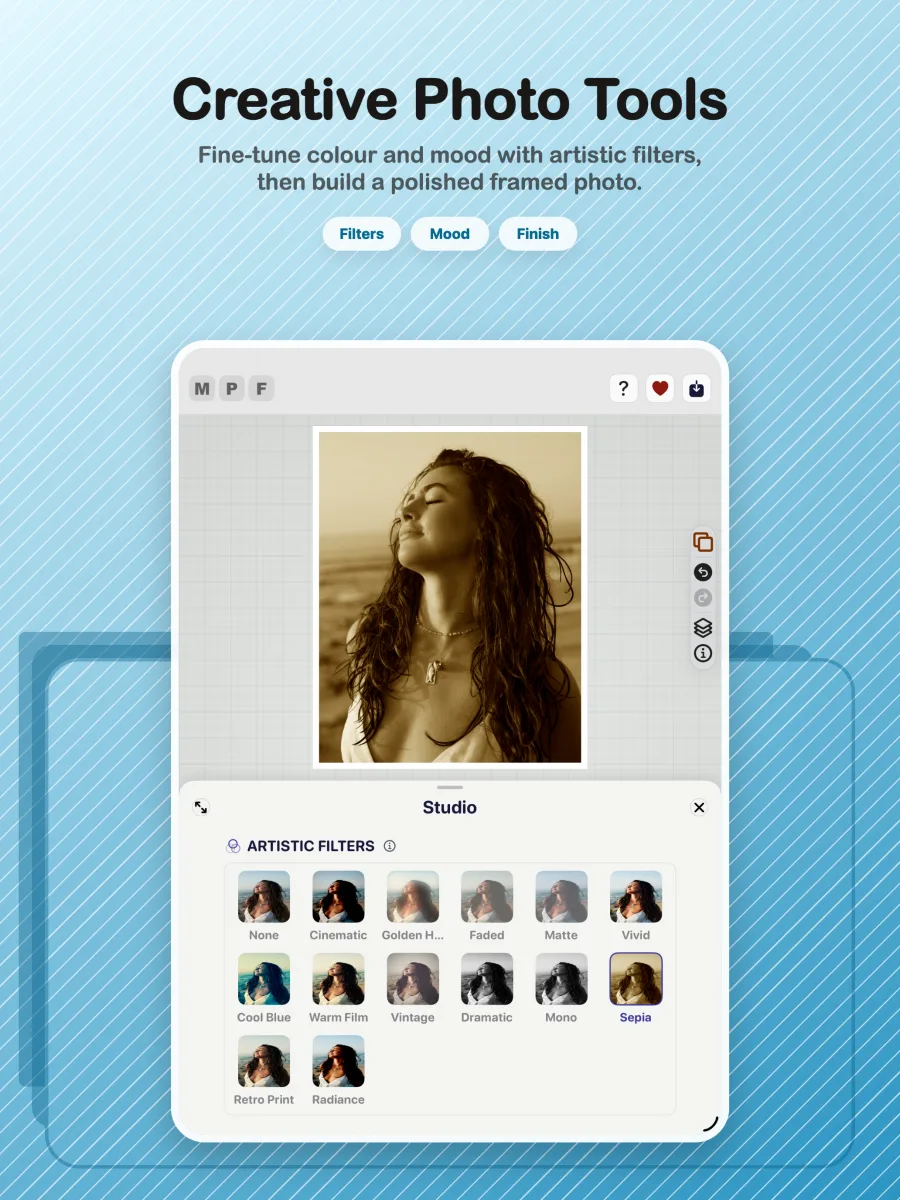
Max Photo Frames Studio tools on iPad
From intent to outcome

One photo moves through a controlled value stream.

The visible tools are only one part of the journey. Intake, scene understanding, non-destructive state and delivery-quality rendering support the customer-facing workflow.

01SelectChoose the source and retain useful metadata.
02UnderstandRead scene, colour, text, faces and context.
03SeparateDiscover and refine a usable foreground subject.
04StyleApply frame, canvas, filter, colour and depth.
05ComposePosition text and decor around the subject.
06ReviewInspect the complete composition contract.
07DeliverRender, save or share at delivery quality.
Value trigger
The user chooses a photo they want to improve, explain or preserve.
Value delivered
A finished still, GIF, cinematic video or Live Photo that reflects the reviewed composition.
Quality constraint
The live canvas and final export must preserve the same crop, layout, ordering and styling.
Privacy constraint
Subject separation runs on device; transferable files and export metadata follow explicit privacy rules.
Failure principle
If a photo has no usable subject, subject-dependent features explain or safely fall back rather than fabricating a result.
Notation

Two processes, modelled as pools and lanes.

Creating an export and keeping the work portable are separate processes with separate participants. Solid arrows are sequence flow inside one participant; dashed arrows are messages between participants. Diamonds are exclusive decisions, and the circle attached to a task is what happens when that task cannot complete.

A · Create and export a framed photo

Person App On-device AI Render pipeline Create a framed photo guided on my own yes no no subject yes no, keep editing A photo worth sharing Import the photo and open an editable document Guided or on my own? Follow the guided steps, skip any Edit in Studio, Style, Caption, Decor, Hub Record the change, never touching the original Subject effect asked for? Separate the subject on device No clear subject: say so, never fake it Keep the subject for reuse Compose the live canvas you are looking at Looks right? Choose save or share Replay it at delivery quality Image, GIF, video or Live Photo

Scroll the diagram sideways on a narrow screen.

What the decisions protect

Two ways in, one result.

The guided path and the direct path converge on the same recorded change, so choosing the simpler route never produces a lesser creation.

Why one render lane

Preview and export are the same work.

The canvas and the saved file are produced by the same composition step at different resolutions. That is what makes the saved result match the reviewed one.

The attached circle

A missing subject is a designed path.

When a photo has no clear subject to lift, the process routes to an explanation instead of inventing a cutout, and the composition continues without the effect.

The loop

Nothing saves itself.

Review returns to editing as many times as the person wants. Leaving the loop is always an explicit choice to save or share.

B · Keep the work portable

You App iCloud Their device Keeping your work yes on off A look worth keeping Save it as a preset Save it on the device first Share it with someone? Write a small file, personal details removed Send it by Messages or AirDrop iCloud Sync turned on? Copy presets and captions to iCloud Your other device picks up the newest version Survives a new device or reinstall Stays on this device They receive the file Check the file before opening it Import the look with one tap They have the look
Order matters
The preset is saved on the device before the sync decision, so syncing is a consequence of saving and never a condition for it.
Both endings are success
Sync is optional and off unless it is turned on. The path that ends locally is a completed process, not a failure.
No account in between
Sharing a look is a file sent directly to a person. The other device checks it before importing, and neither participant needs an account with us.
Personal details stay put
Names, dates and other personalisation are not part of either flow. They belong to the device they were entered on and move only when the owner explicitly exports them.
Start of a process
End of a process
A step someone performs
A step with detail of its own
A decision, one path taken
What happens if a step cannot succeed
Order of steps
Something sent between devices
D01Photo intake & metadata

Source resolution, orientation, date, location and restoration.

D02AI Vision & scene understanding

Classification, faces, text, masks and subject identity.

D03Frame, matte & canvas

Physical surround, output ratio, margin and depth.

D04Image processing

Filters, toning, background modes and appearance.

D05Captions & text

Content, style, position, layering and accessibility.

D06Decor & overlays

Dates, watermarks, stickers, props and effects.

D073D composition

3D Pop, parallax, subject overflow and shadows.

D08Profiles & state

Presets, document state, persistence, undo and recovery.

D09Export & delivery

Review, rendering, format, privacy, save and share.

D10Quality attributes

WYSIWYG, performance, memory, privacy and resilience.

Common questions

How do I add a frame to a photo on iPhone?

Choose the photo, pick a frame and canvas shape in the Style tab, then save. You can either follow the guided steps, which can each be skipped, or work directly in the Studio, Style, Caption, Decor and Hub tabs.

Can I change my mind after editing?

Yes. Editing is non-destructive: your original photo is never altered, and every change is recorded as a separate decision you can revisit, undo or export differently later.

What formats can I export?

A still image, an animated GIF, a cinematic video or a Live Photo, all rendered from the same composition you reviewed on the canvas.

Back to top ↑